 VesselTill
How-to
How to export your till sales to Excel or Google Sheets
In VesselTill, open the 💾 Backup tab and tap ⬇ Receipts Spreadsheet (.csv). Your browser downloads a CSV file named VesselTill-Receipts- followed by the date straight into your Downloads, with no Save as window. Open it in Excel, or bring it into Google Sheets with File, Import.
Export your sales in three taps
- Open VesselTill and go to the 💾 Backup tab.
- Find the 📤 Export Receipts section. It shows how many receipts you have.
- Tap ⬇ Receipts Spreadsheet (.csv). You will see “Spreadsheet downloaded ✓”.
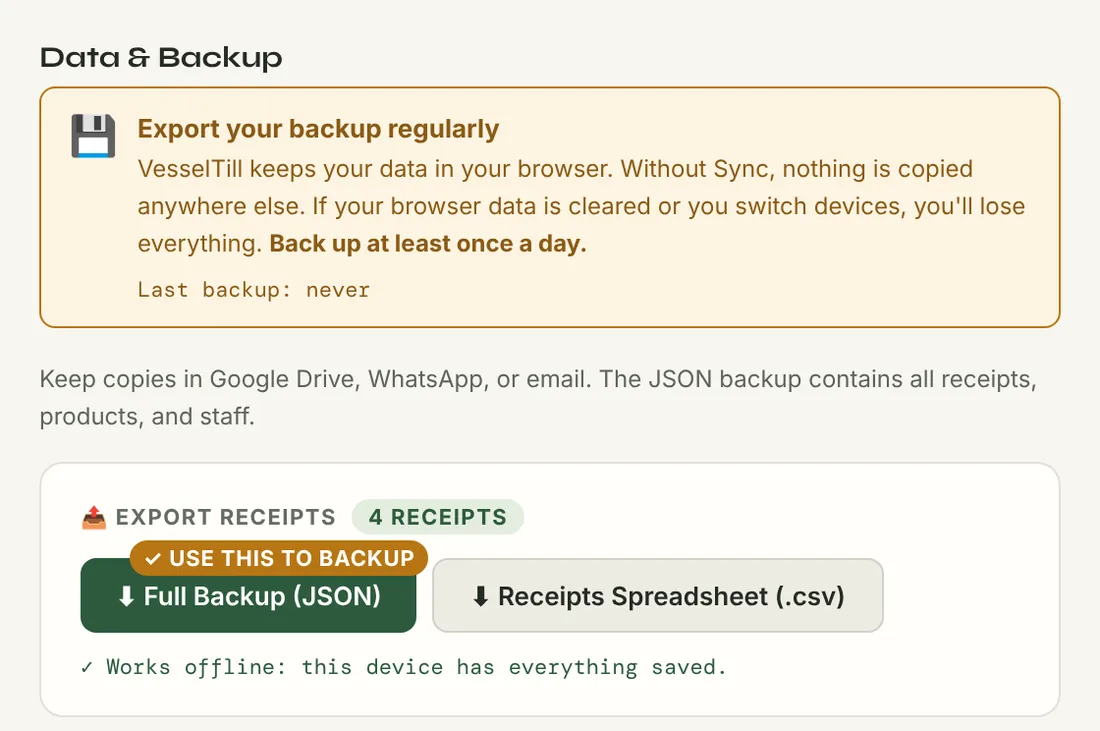
The file is called something like VesselTill-Receipts-2026-11-13.csv. It contains every receipt on this device. Exporting does not change or delete anything in the till.
Where did my file go?
Browsers save downloads straight to a Downloads folder, so it is easy to miss.
- Android (Chrome): tap the download notification, or open Chrome’s ⋮ menu and choose Downloads. It is also in the Files app under Downloads.
- iPhone or iPad (Safari): tap the Downloads button next to the address field, or open the Files app, tap Browse, then Downloads.
- Computer: look in your Downloads folder. In Chrome, open ⋮ then Downloads and choose Show in folder.
Why is there no “Save as” option?
The browser decides where downloads go, not VesselTill. Most browsers save straight to Downloads without asking. On a computer you can change that: in Chrome’s settings under Downloads, turn on Ask where to save each file before downloading.
Open it in Excel
Double-click the file and Excel opens it, with dates written as 2026-11-13 so day and month cannot be swapped. If everything lands in one column, or letters with accents and currency symbols such as ₱ look wrong, import it instead:
- Open a blank workbook and go to Data, then From Text/CSV.
- Choose the VesselTill file.
- Set File Origin to 65001: Unicode (UTF-8) and the delimiter to Comma.
- Click Load.
Import it into Google Sheets
- On a computer, open a blank spreadsheet in Google Sheets.
- Choose File, then Import, then Upload, and select the file.
- Pick an import location, such as Insert new sheet(s), leave the separator on detect automatically, and click Import data.
On a phone, it is easier to upload the file to Google Drive first, then open it from Drive with Google Sheets.
What is in the file
There is one row per item, not one row per receipt. The columns are: Receipt #, Type, Date, Time, Customer, Staff, Item, Qty, Unit Price, Line Total, Custom, Added By, Payment, Payment Detail, Total, Discount %, Tax %, Tax Amount and Ref Receipt.
- The Total repeats on every item row of the same receipt, so don’t add up that column. For item sales, add up Line Total on the sale rows instead (it is before any receipt discount), or use a pivot table on Receipt #.
- Filter the Type column to see sales, refunds, exchanges and items bought from customers separately.
- Payment Detail holds the card reference or the digital payment method, if one was entered.
This file is not a backup. A spreadsheet can’t be loaded back into VesselTill. To move or restore your till, use ⬇ Full Backup (JSON). The help guide compares every export.
Selling with no internet? See how to run a till offline. New to VesselTill? Start with how it works.
Questions
Where did my exported file go?
It is in your Downloads. On Android, open Chrome’s menu and choose Downloads, or look in the Files app. On an iPhone, open the Files app, tap Browse, then Downloads. On a computer, check the Downloads folder.
Why is there no Save as option when I export?
Your browser saves downloads straight to the Downloads folder. On a computer you can turn on Ask where to save each file before downloading in Chrome’s Downloads settings.
Can I export my sales on my phone?
Yes. The Receipts Spreadsheet (.csv) button works on phones too. Open the file with a spreadsheet app, or upload it to Google Drive and open it with Google Sheets.
Can I download my sales as an Excel or Google Sheets file?
Yes. VesselTill downloads your sales as a CSV file, which Excel, Google Sheets and other spreadsheet apps open. In Excel you can then choose Save As to keep it as an Excel workbook.
Does exporting delete my sales?
No. Exporting only makes a copy. All your receipts stay in VesselTill exactly as they were.
Sources
- Apple Support, “Where to find downloads on your iPhone or iPad”. Downloads are in the Files app and in Safari’s Downloads list.
- Google Chrome Help, “Download a file”. Finding downloads on Android and computers, and changing the download location.
- Microsoft Support, “Opening CSV UTF-8 files correctly in Excel”. Opening a UTF-8 CSV with Get Data From Text.
- Google Docs Editors Help, “Import data sets & spreadsheets”. Importing a .csv file into Google Sheets.
Checked on 13 November 2026.